

The biggest obstacle in family travel planning is wasting hours on hotel listings that seem perfect until the fine print reveals they’re not right for your trip.
I get that you’re looking for an affordable place with enough space, near your destinations, and the right amenities to keep your kids happy. Manually checking every listing against these needs wastes time you don’t have.
You need a way to filter out the obvious misfits before you waste twenty minutes reading reviews and checking photos.
Sometimes it’s hard to trust booking platforms because the “family-friendly” badge doesn’t tell you if there’s a kitchen where you can reheat your toddler’s preferred snacks at 6 AM, or whether “downtown” means genuinely walkable or a thirty-minute trek with a stroller.
If you’re planning a family trip on Booking.com, what you actually need is a system that hides properties that won’t work and surfaces ones that will. Get into the right booking.com filters for family travel from the start.
Learn which five filters address family travel’s biggest issues: wasted time, food costs, rigid cancellation, poor location, and mismatched amenities. Most people miss these filters or don’t realize their value.
If you’re booking your next family trip, you’re probably either clicking through dozens of irrelevant listings or settling for something mediocre because you’re exhausted from searching. I highly recommend that you set up these five filters before you look at a single property listing and watch how fast your search becomes actually useful.
Before you jump headfirst into booking your trip, always check and compare prices on other websites to see which one is best for your travel needs.
The 5 Filters That Change Everything and Maximize Your Search with Booking.com Filters for Family Travel
1. Smart Filter (Natural Language Search)
Booking.com’s Smart Filter lets you type what you need in plain language, rather than toggling through dozens of checkboxes. You can type “apartment with kitchen near metro suitable for kids” and the platform automatically applies the right filters to show you properties that match.
This works because family trips have complicated requirements. You need space for three or four people without feeling cramped. You want a kitchen so you can control meal times and costs.
You prefer to be near public transit so you don’t have to pay for parking or rental cars.
The Smart Filter handles all of this in a single search box, so you don’t have to hunt through nested menus.
How to use it: Open the Booking.com app, tap the search box, and describe your ideal stay like you’re telling a friend. The AI reads your request and filters results to match it.
Time saved: Cuts initial search time by 60% because you’re seeing only properties that meet your core needs.
2. Free Cancellation + No Prepayment
Turning on both “Free cancellation” and “No prepayment” filters ensures you only see properties where you can book without paying upfront or risking penalties if plans change. This gives families essential flexibility to adapt if anything comes up unexpectedly.
Plans shift constantly. Your childcare arrangement falls through.
Flight prices drop for different dates.
Someone gets sick. Standard hotel policies charge cancellation fees if you cancel within 14 days of arrival.
This filter removes those properties entirely and shows only the ones you keep full flexibility over.
You can also rebook at a lower rate if prices drop without losing your original reservation.
How to use it: In the filter menu, toggle on “Free cancellation” and “No prepayment required.” You’ll see fewer results, but every property protects you from surprise fees.
Money saved: Prevents losing $100 to $400 in cancellation penalties if travel plans shift, which happens often with families.
3. Breakfast Included
The “Breakfast included” filter shows only options where breakfast is in your room rate. For families of three or more, this often offers better value than rooms without breakfast.
Breakfast costs $12 to $20 per person per day in most destinations. For a family of four on a week-long trip, that’s $336 to $560 in food expenses you might not be budgeting for.
Breakfast included usually costs less than buying it daily, saving your budget.
Beyond the money, including breakfast solves the morning chaos problem. You don’t scramble to find a café before everyone gets hangry.
Your kids eat familiar foods on a consistent schedule.
You avoid paying $5 for a mediocre coffee at a train station.
How to use it: Filter for “Breakfast included” and compare the total trip cost (room rate times nights) against similar properties without breakfast. Add $15 per person per day to the non-breakfast option to see the real price difference.
Money saved: $40 to $80 per day for a family of four, plus the time cost of finding somewhere to eat each morning.
4. Kitchens and Apartments
The “Apartments” property type filter, used with the “Kitchen” or “Kitchenette” amenity filter, shows only self-catering places. Picking these filters means families can prepare meals, control diets, and save significantly, especially on longer trips.
A family of four eating every meal at restaurants spends $1,200 to $1,800 per week on food. Even modest self-catering reduces that by 30-50%.
Make breakfast in your apartment, pack picnic lunches from a grocery store, cook dinner three nights instead of eating out every night, and you’ll save $400 to $900 per week.
Kitchens also solve practical problems. Your toddler won’t eat unfamiliar restaurant food, so you cook what they’ll actually eat.
Your child has dietary restrictions, and you don’t want to negotiate with restaurant staff in a language you barely speak.
You want to eat at 5 PM to avoid overtired meltdowns, rather than wait until restaurants open at 7 PM.
How to use it: Toggle “Apartments” under property type and “Kitchen/Kitchenette” under amenities. Compare the nightly rate plus grocery costs against hotel rates plus restaurant costs.
Money saved: $40 to $100 daily for a family of four, more on extended or expensive trips.
5. Map View with Distance Filters
Booking.com’s interactive map, combined with the “Distance from downtown” or neighborhood filter, lets you visualize each property’s location. For families, these filters help choose accommodations with easy access to key spots and minimize travel hassles.
For families, location often decides whether your day flows smoothly or becomes a logistics nightmare. A property “near the station” might be a manageable five-minute walk or an exhausting twenty-minute trek with kids and luggage.
The map shows this instantly.
You can zoom in to see which properties cluster near parks if you have young children who need outdoor time every day. You can identify properties that are actually on the beach versus those that require a drive.
You can avoid accidentally booking somewhere isolated despite “downtown” claims in the listing description.
How to use it: After applying your other filters, switch to map view. Zoom into your target neighborhood and see which filtered properties actually sit where you want to be.
Click properties on the map to compare prices and availability without losing your visual reference.
Time saved: Prevents booking properties in the wrong location, which would cost you hours of commuting time or the need to rent a car you didn’t budget for.
How These Filters Work Together
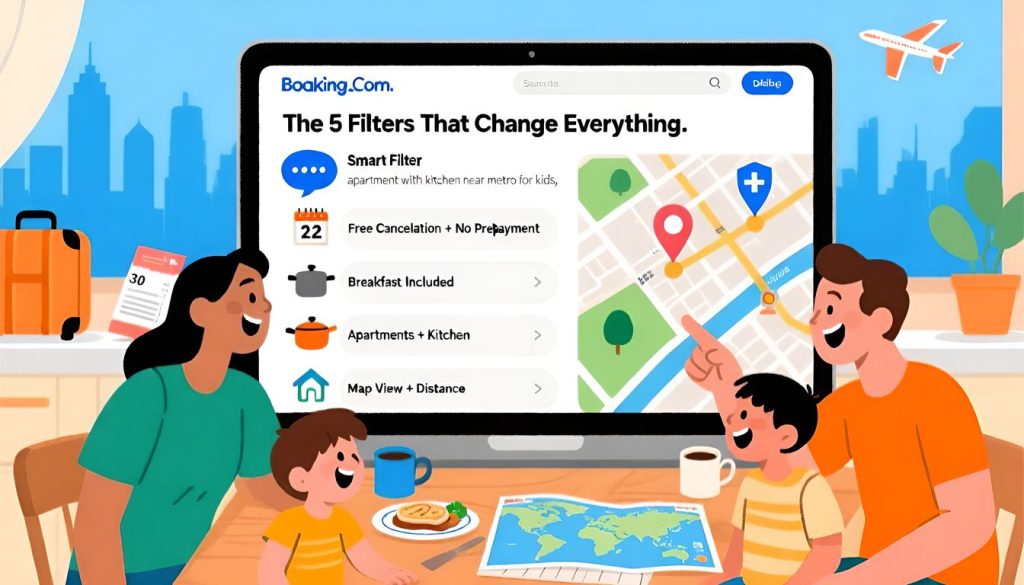
These five filters become even more powerful when combined, as each filter helps to narrow search results to better match your specific needs. A typical family search might look like this:
Start with your dates and destination. Turn on “Free cancellation” and “No prepayment” to protect against plan changes.
Add “Breakfast included” if you’re staying in an urban area for less than a week.
Switch to “Apartments” with “Kitchen” if you’re staying longer than four nights or traveling with extended family. Use Smart Filter to add context, such as “near metro” or “suitable for kids.” Finally, view the results on the map to verify the location.
This combination narrows hundreds of properties down to 10 or 20 that actually match your needs. Each has the amenities you require, sits where you need it, and offers flexibility if plans shift.
You’re not scrolling through pages of hotels with no kitchens when you need one, or looking at apartments with non-refundable rates when you need flexibility, or comparing properties across the entire city when you only want one specific neighborhood.
Real Trip Examples
Weekend city break (Barcelona, three nights): Use Smart Filter to find “apartment near Las Ramblas with breakfast included,” add “Free cancellation,” check the map to verify you’re actually in the Gothic Quarter, and book knowing you can cancel if your flights get moved.
Week at the beach (Portugal, 7 nights): Filter for “Apartments” with “Kitchen,” use the map to find properties within 200 meters of the beach, add “Free cancellation” since summer weather is unpredictable, and cook breakfast and lunch to save €60 per day on meals.
Two-week Europe trip (multiple cities): Use Smart Filter consistently across all stops: “apartment with kitchen, free cancellation, near train station.” Book properties that work the same way so you don’t have to learn new systems in each city. Save substantially on food by cooking basic meals.
Start Here: Your Next Search
The next time you search Booking.com for a family trip, follow this sequence:
Enter your destination and dates. Click “Free cancellation” and “No prepayment” to protect against changes.
Be proactive about your needs: decide if you need a kitchen (for trips longer than four nights, you usually will), and incorporate that filter from the very start for a faster, stress-free search.
Add “Breakfast included” if you’re in a city or want consistent morning routines. Use Smart Filter if you have specific location requirements, such as “near metro” or “walkable to old town.” Switch to map view and zoom into your target area to see which properties actually sit where you need them.
This takes 3 minutes and eliminates the days of frustration spent manually comparing properties that won’t work for your trip.
Lets Recap
Most families waste hours booking travel because they’re comparing too many properties that don’t meet their actual needs. The five filters outlined here solve that problem by hiding bad fits before you waste time reading descriptions and reviews.
Smart Filter handles complex requirements in one search. Free cancellation protects against plan changes.
Breakfast included saves money and morning stress.
Kitchens cut food costs dramatically on longer trips. Map view prevents location mistakes that ruin your itinerary.
You don’t need to master every feature Booking.com offers. You need these five filters working together to surface stays that genuinely fit your family’s requirements.
The next time you’re planning a trip, apply these filters before looking at a single property. You’ll book faster, spend less on food, maintain flexibility for inevitable plan changes, and avoid properties that look good online but create friction in real life.
Ready to try this on your next trip? Open Booking.com, enter your destination, and turn on these five filters to see how much faster you find something that actually works.
Frequently Asked Questions
Do these filters work on both the Booking.com website and mobile app?
All five filters are available on both platforms. Smart Filter appears as a search suggestion field in the app. The other four filters sit in the filter menu, accessible from the left sidebar on desktop or the filter icon on mobile.
The interface looks slightly different, but the functionality is identical.
If I turn on too many filters, will I see zero results?
You might be in very small destinations or during peak season when availability is limited. If that happens, remove one filter at a time, starting with the least critical. Most people find that using three of these five filters still yields 10 to 30 viable properties in mid-size cities.
Does “breakfast included” always mean a full breakfast, or is it sometimes just coffee and a pastry?
It varies by property. Scroll to the “Breakfast” section in the amenities breakdown on each listing to see if it’s continental (pastries and coffee), buffet (hot and cold items), or full breakfast.
Reading recent reviews helps confirm whether the breakfast is substantial enough for your family or minimal.
Can I save my preferred filter settings so I don’t have to set them up for every search?
Booking.com doesn’t save filter preferences between searches. You’ll need to reapply filters each time you search.
However, using Smart Filter lets you describe your requirements once rather than toggling multiple checkboxes, which speeds up the process.
Are “free cancellation” properties more expensive than non-refundable ones?
Sometimes, but not always. The price difference is often $5 to $15 per night.
Given that cancellation penalties typically cost $100 to $400 total if you need to cancel, paying an extra $50 for a week-long trip with free cancellation is usually worth it for families whose plans shift often.
How far in advance should I book if I’m using the free cancellation filter?
You can book as far in advance as properties allow, often six to twelve months ahead. If prices drop later, cancel and rebook at the lower rate.
If prices increase, you’ve already secured the original rate.
Do apartments with kitchens cost more per night than hotel rooms?
Per night, apartments often cost slightly less or about the same as comparable hotel rooms. The real savings come from reducing food expenses by $40 to $100 per day for a family of four.
Over a week, you might save $300 to $700 on food, even if the apartment costs $20 more per night than a hotel without a kitchen.
Affiliate Disclosure for Smart Miles Traveler
At Smart Miles Traveler (https://smartmilestraveler.com), our goal is to provide helpful, honest, and practical travel tips, product recommendations, and money-saving strategies.
Some of the links on this website are affiliate links. This means that if you click on a link and make a purchase, we may earn a small commission at no extra cost to you.
These commissions help support the operation of this website and allow us to continue creating free, high-quality travel content for our readers.
Questions or Concerns
If you have any questions about our affiliate relationships or how this website operates, please feel free to contact us.
📧 Email: info@smartmilestraveler.com